Getting Started with Claude: A Tour of the Interface
Your first five minutes with Claude — what everything on the screen does and how to send your first message.
The fastest way to get comfortable with Claude is to open claude.ai, sign in, and look around. The screen is simpler than it first appears — a sidebar on the left, a big message box in the middle, and a few controls around it. Here's what each part does.
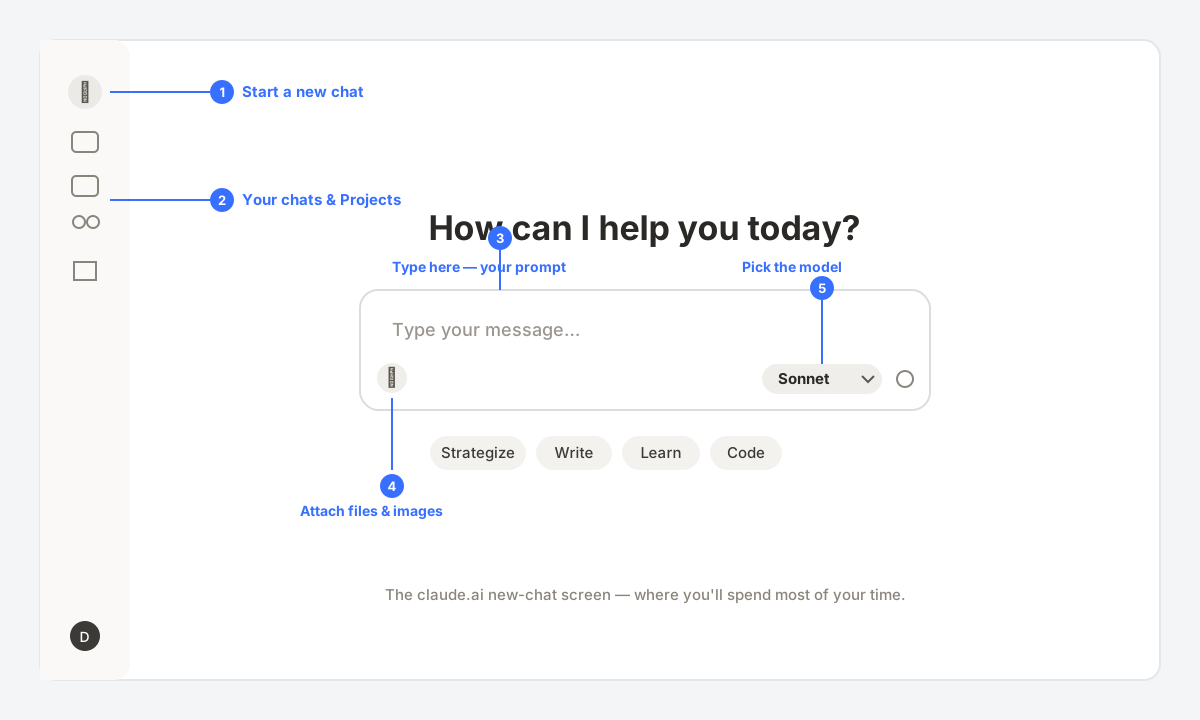
The Interface at a Glance
| Part | What it does |
|---|---|
| New chat (+) | Starts a fresh conversation. Use it whenever you switch to an unrelated topic. |
| Chats & Projects | The left rail holds your past chats and your Projects — grouped workspaces with saved context. |
| Message box | Where you type your prompt. This is where everything starts. |
| Attach (+) | Add files and images — PDFs, docs, screenshots — for Claude to read. |
| Model picker | Switch between Claude models (Haiku, Sonnet, Opus). Sonnet is the everyday default. |
Send Your First Message
- Click in the message box and type what you want — a question, a task, anything, in plain language.
- Press Enter to send. Claude replies in the same thread.
- Not quite right? Just reply with what to change. It's a conversation, not a one-shot search.
- Switching topics? Hit New chat (+) so the old context doesn't bleed into the new one.
Tips for Your First Day
- Stay on the default model (Sonnet) — it handles almost everything. See models explained for when to switch.
- Be specific: say what you want, who it's for, and the format. More in prompting basics.
- Try attaching a file or image and asking Claude about it — that's often the «aha» moment.
- Unfamiliar word on screen? The glossary covers the vocabulary.